5 Best Laptop Docking Stations for Students (2026): USB-C vs TB5
Choose a dock around your laptop, monitors and real desk workflow—not simply the largest number of ports.
A decision, not a wall of specs
- 01Find the use case that fits your setup.
- 02Compare the evidence and the trade-off.
- 03Check what remains unverified before buying.
This research-based guide contains paid affiliate links. SWG may earn a commission from qualifying purchases at no extra cost to you. We have not personally tested these five docking stations; product capabilities depend on your exact host.
01 / Featured pick
Why this position matters
Anker Prime Charging Docking Station 14-in-1
Retailer link unavailable while loading or in Internal QA mode.A balanced one-cable hub for a permanent desk, without paying for Thunderbolt 5 that a laptop may not support.
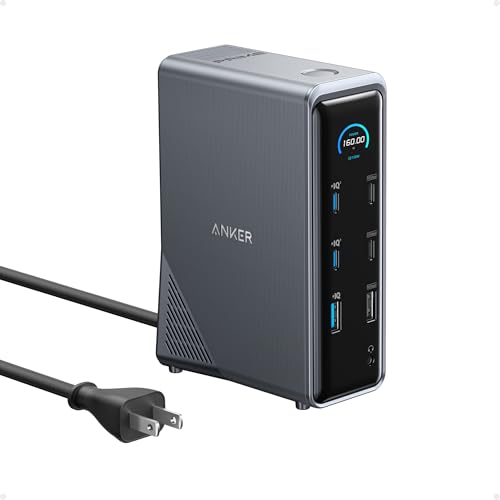
Ideal for: An everyday fixed study desk needing charging, two displays on compatible hardware, Ethernet and USB peripherals.
Why it stands out
- Vertical body conserves horizontal desk space
- Two HDMI outputs and substantial USB connectivity
Main trade-off
macOS MST restrictions can prevent independent dual-display extension
The shortlist
Five options, five reasons.
Start with the situation that best matches your setup.
Anker Prime Charging Docking Station 14-in-1
Retailer link unavailable while loading or in Internal QA mode.A balanced one-cable hub for a permanent desk, without paying for Thunderbolt 5 that a laptop may not support.
Best for: An everyday fixed study desk needing charging, two displays on compatible hardware, Ethernet and USB peripherals.
- Vertical body conserves horizontal desk space
- Two HDMI outputs and substantial USB connectivity
- Integrated power system plus Ethernet and audio
Trade-off: macOS MST restrictions can prevent independent dual-display extension
(paid link)

WAVLINK 11-in-1 USB-C Docking Station
Retailer link unavailable while loading or in Internal QA mode.Broad conventional USB-C connectivity when everyday desk utility matters more than maximum Thunderbolt bandwidth.
Best for: A student who needs monitors, USB accessories, Ethernet and SD media without the expense of a high-bandwidth TB5 dock.
- One HDMI port plus two DisplayPort outputs for flexible desk wiring
- SD card reader, USB expansion and wired Ethernet
- Avoids paying for advanced Thunderbolt hardware when unnecessary
Trade-off: Advertised triple-display and 8K modes depend on the specific laptop
(paid link)
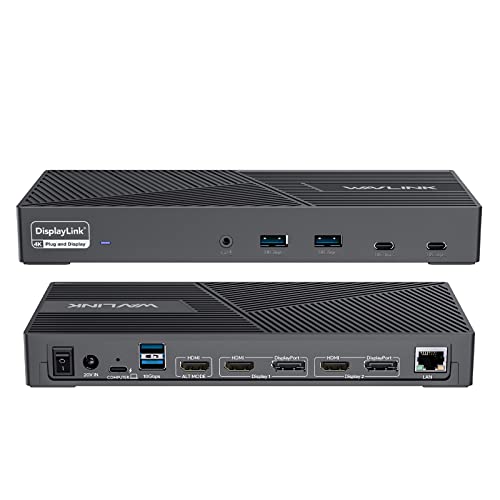
WAVLINK DisplayLink Triple Monitor Dock
Retailer link unavailable while loading or in Internal QA mode.A software-assisted multi-display specialist for supported laptops, especially where native monitor outputs are limited.
Best for: A productivity-heavy desk where several external displays are important and installing DisplayLink software is acceptable.
- DisplayLink can provide additional displays on otherwise restrictive laptops
- Multiple HDMI and DisplayPort outputs plus six USB ports
- Up to 100W laptop charging is listed
Trade-off: Requires DisplayLink software and applicable operating-system permissions
(paid link)
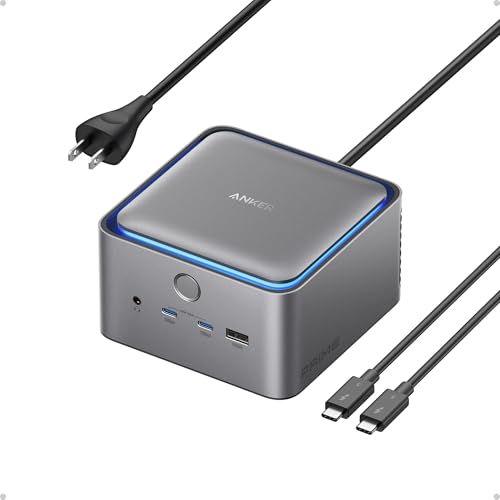
Anker Prime TB5 Docking Station 14-in-1
Retailer link unavailable while loading or in Internal QA mode.Premium Thunderbolt 5 connectivity and up to 140W host power for a compatible high-performance workstation.
Best for: Thunderbolt 4/5 laptop owners transferring large files or connecting fast SSDs, high-resolution displays and 2.5Gb Ethernet.
- One upstream and two downstream TB5 ports
- Up to 140W host charging on compatible hardware
- 2.5Gb Ethernet and high-end display connectivity
Trade-off: Display configurations vary considerably by laptop and Apple silicon generation
(paid link)

WAVLINK Thunderbolt 5 Dock with NVMe M.2
Retailer link unavailable while loading or in Internal QA mode.Combines a TB5 docking station with an internal M.2 NVMe slot, saving a separate SSD enclosure for the right workflow.
Best for: A compatible Thunderbolt 5 workstation handling large research datasets, photo/video files or other fast local storage.
- Integrated PCIe Gen 4 x4 M.2 NVMe slot
- Up to 140W host charging and 2.5Gb Ethernet
- Docking and removable high-speed storage in one workspace device
Trade-off: NVMe SSD must be purchased separately
(paid link)
Look beyond a label
Compare the decision points
Verified fields appear where evidence is available; unknowns stay visible.
Anker Prime Charging Docking Station 14-in-1
Best Overall Student Desk
- Host connection
- USB-C; check video support
- Display caveat
- Up to dual 4K 60Hz on compatible hosts
- Charging / power
- 160W total output; verify individual port power
- Why choose it
- Vertical body; 14 connections
WAVLINK 11-in-1 USB-C Docking Station
Best Value-Oriented USB-C
- Host connection
- USB-C; confirm DisplayPort Alt Mode
- Display caveat
- Listing: up to 8K or triple 4K; host-dependent
- Charging / power
- 125W PD3.1 power system
- Why choose it
- 1 HDMI, 2 DisplayPort, SD and Ethernet
WAVLINK DisplayLink Triple Monitor Dock
Best for Multiple Monitors
- Host connection
- USB-C with DisplayLink software
- Display caveat
- Triple-monitor approach via DisplayLink
- Charging / power
- Up to 100W host charging (listing)
- Why choose it
- 3 HDMI, 2 DisplayPort; driver required
Anker Prime TB5 Docking Station 14-in-1
Best Premium Bandwidth
- Host connection
- TB4/5/USB4; Mac OS caveat
- Display caveat
- High-resolution modes depend on host and OS
- Charging / power
- Up to 140W host charging
- Why choose it
- TB5 bandwidth; 2.5Gb Ethernet
WAVLINK Thunderbolt 5 Dock with NVMe M.2
Best for NVMe Storage
- Host connection
- Thunderbolt 4/5; TB5 optimal
- Display caveat
- Windows TB5 up to 3; Mac up to 2 (listing)
- Charging / power
- Up to 140W host charging
- Why choose it
- Internal M.2 NVMe slot; SSD sold separately
The reasoning
A closer look at each choice.
01 / Best Overall Student Desk
Anker Prime Charging Docking Station 14-in-1
Retailer link unavailable while loading or in Internal QA mode.A fixed student workstation often needs charging, wired networking, a keyboard, storage and one or two monitors in one convenient place. This Anker model collects those everyday connections in a vertical desk-friendly body. Its built-in display offers charging or connection status, but the key reason to choose it is the balance of ports and physical footprint. The listed dual-4K capability is conditional on the host and operating system: macOS does not support MST independent monitor extension as Windows does. Confirm your exact computer's display outputs and charging needs before buying; the stated 160W is a total power-system figure rather than a universal promise of 160W laptop charging.
What supports this fit
- • Vertical body conserves horizontal desk space
- • Two HDMI outputs and substantial USB connectivity
- • Integrated power system plus Ethernet and audio
Limits and unknowns
- • macOS MST restrictions can prevent independent dual-display extension
- • Not intended as a tiny travel USB-C hub
Who it would suit: An everyday fixed study desk needing charging, two displays on compatible hardware, Ethernet and USB peripherals.
Who should skip it: You only connect one accessory, or your exact laptop cannot use the dock's display outputs.
(paid link)
Key verified specifications
- Host connection
- USB-C; check video support
- Display caveat
- Up to dual 4K 60Hz on compatible hosts
- Charging / power
- 160W total output; verify individual port power
- Why choose it
- Vertical body; 14 connections
Evidence note: Previously researched 2026-09-22: Supplied product research and PartnerBoost product information; not personally tested. Sources and unresolved limitations are recorded in the SWG catalog; manufacturer or seller-listed capabilities are not personal test results.
02 / Best Value-Oriented USB-C
WAVLINK 11-in-1 USB-C Docking Station
Retailer link unavailable while loading or in Internal QA mode.The WAVLINK 11-in-1 solves the common problem of too many desktop cables without assuming every student owns a premium Thunderbolt laptop. An HDMI port, two DisplayPort connections, USB, SD and Ethernet cover much of a typical research or study workstation. It is a value-oriented functional category choice, not a live price comparison: current prices and qualifying commission are not claimed. Multi-monitor and high-resolution output should be interpreted as conditional manufacturer listing capabilities. The right laptop hardware, USB-C video implementation and operating system determine the usable arrangement. Check your exact model rather than relying on the number of video ports printed on the product page.
What supports this fit
- • One HDMI port plus two DisplayPort outputs for flexible desk wiring
- • SD card reader, USB expansion and wired Ethernet
- • Avoids paying for advanced Thunderbolt hardware when unnecessary
Limits and unknowns
- • Advertised triple-display and 8K modes depend on the specific laptop
- • 125W PD3.1 describes the listed power system; verify actual host output
Who it would suit: A student who needs monitors, USB accessories, Ethernet and SD media without the expense of a high-bandwidth TB5 dock.
Who should skip it: You require driver-free guaranteed triple extended displays on an unsupported MacBook, or TB5 transfer speeds.
(paid link)
Key verified specifications
- Host connection
- USB-C; confirm DisplayPort Alt Mode
- Display caveat
- Listing: up to 8K or triple 4K; host-dependent
- Charging / power
- 125W PD3.1 power system
- Why choose it
- 1 HDMI, 2 DisplayPort, SD and Ethernet
Evidence note: Previously researched 2026-09-22: Supplied product research and PartnerBoost product information; not personally tested. Sources and unresolved limitations are recorded in the SWG catalog; manufacturer or seller-listed capabilities are not personal test results.
03 / Best for Multiple Monitors
WAVLINK DisplayLink Triple Monitor Dock
Retailer link unavailable while loading or in Internal QA mode.DisplayLink changes the buying decision because its extra screens are driven through USB and software rather than a purely native display pipeline. For spreadsheets, coding, documents and research across several monitors, that trade-off may be worthwhile. It may also help certain Mac users whose native external-display configuration is restrictive, but it is not an unrestricted guarantee of triple external monitors. On macOS, users need DisplayLink Manager and the required operating-system permissions. Anyone seeking a plug-and-play native graphics path, low software overhead, or a specialized high-performance video workflow should review the alternatives first. We distinguish the manufacturer's supported configuration from actual tests, which SWG has not conducted.
What supports this fit
- • DisplayLink can provide additional displays on otherwise restrictive laptops
- • Multiple HDMI and DisplayPort outputs plus six USB ports
- • Up to 100W laptop charging is listed
Limits and unknowns
- • Requires DisplayLink software and applicable operating-system permissions
- • Not equivalent to native GPU-driven Thunderbolt or DisplayPort
Who it would suit: A productivity-heavy desk where several external displays are important and installing DisplayLink software is acceptable.
Who should skip it: You cannot install drivers or grant permissions, or your priority is the simplest no-driver display path.
(paid link)
Key verified specifications
- Host connection
- USB-C with DisplayLink software
- Display caveat
- Triple-monitor approach via DisplayLink
- Charging / power
- Up to 100W host charging (listing)
- Why choose it
- 3 HDMI, 2 DisplayPort; driver required
Evidence note: Previously researched 2026-09-22: Supplied product research and PartnerBoost product information; not personally tested. Sources and unresolved limitations are recorded in the SWG catalog; manufacturer or seller-listed capabilities are not personal test results.
04 / Best Premium Bandwidth
Anker Prime TB5 Docking Station 14-in-1
Retailer link unavailable while loading or in Internal QA mode.This is the premium option for a student, engineer or creator already using compatible Thunderbolt 4/5 hardware. Its two downstream Thunderbolt 5 connections, 2.5Gb Ethernet, SD/TF readers, USB ports and selectable HDMI/DisplayPort connector consolidate demanding storage and display workflows. Up to 140W host power may be useful for compatible laptops, but a computer only accepts the power and display configuration it supports. Anker's troubleshooting guidance calls for macOS 15+, although its sales specifications list macOS 14.5+; confirm exact OS and supported host with Anker before buying. Thunderbolt 3 and Intel MacBook hosts are not supported according to its support information. Do not assume every MacBook and Windows Thunderbolt host shares the same external monitor limits. The Anker Prime TB5 is also distinct from Anker's regular USB-C 14-in-1 model, despite their similar product naming. The extra spending is difficult to justify for a basic web/document desk.
What supports this fit
- • One upstream and two downstream TB5 ports
- • Up to 140W host charging on compatible hardware
- • 2.5Gb Ethernet and high-end display connectivity
Limits and unknowns
- • Display configurations vary considerably by laptop and Apple silicon generation
- • Overkill for basic USB peripherals and a single monitor
Who it would suit: Thunderbolt 4/5 laptop owners transferring large files or connecting fast SSDs, high-resolution displays and 2.5Gb Ethernet.
Who should skip it: Your laptop lacks a compatible Thunderbolt host or you do not need premium bandwidth.
(paid link)
Key verified specifications
- Host connection
- TB4/5/USB4; Mac OS caveat
- Display caveat
- High-resolution modes depend on host and OS
- Charging / power
- Up to 140W host charging
- Why choose it
- TB5 bandwidth; 2.5Gb Ethernet
Evidence note: Previously researched 2026-09-22: Supplied product research and PartnerBoost product information; not personally tested. Sources and unresolved limitations are recorded in the SWG catalog; manufacturer or seller-listed capabilities are not personal test results.
05 / Best for NVMe Storage
WAVLINK Thunderbolt 5 Dock with NVMe M.2
Retailer link unavailable while loading or in Internal QA mode.A normal docking station connects peripherals; this WAVLINK adds an internal M.2 slot, so supported NVMe storage can live within the dock itself. That makes it a more specialized fit for large lab datasets, RAW photography, video editing, virtual machines or development workloads. The manufacturer lists Thunderbolt 4/5 host support (with TB5 needed for full capabilities) and describes the M.2 interface as up to 64Gbps, which should not be treated as a measured SSD benchmark or guaranteed throughput. The SSD is not included. Display compatibility also has a major caveat: the highest triple-screen arrangement requires a suitable Windows 11 or later Thunderbolt 5 host, while the listing limits macOS to two external monitors through this dock. A basic laptop setup will not benefit enough to justify the extra complexity.
What supports this fit
- • Integrated PCIe Gen 4 x4 M.2 NVMe slot
- • Up to 140W host charging and 2.5Gb Ethernet
- • Docking and removable high-speed storage in one workspace device
Limits and unknowns
- • NVMe SSD must be purchased separately
- • Triple-display mode is listed for Windows 11 TB5 hosts, not macOS
Who it would suit: A compatible Thunderbolt 5 workstation handling large research datasets, photo/video files or other fast local storage.
Who should skip it: You have no compatible Thunderbolt 4/5 connection, you only need ordinary USB ports, or you need three external displays on macOS.
(paid link)
Key verified specifications
- Host connection
- Thunderbolt 4/5; TB5 optimal
- Display caveat
- Windows TB5 up to 3; Mac up to 2 (listing)
- Charging / power
- Up to 140W host charging
- Why choose it
- Internal M.2 NVMe slot; SSD sold separately
Evidence note: Previously researched 2026-09-22: Supplied product research and PartnerBoost product information; not personally tested. Sources and unresolved limitations are recorded in the SWG catalog; manufacturer or seller-listed capabilities are not personal test results.
Before you compare models
A better question makes a better shortlist.
Use these docking stations buying criteria alongside the product evidence to decide which trade-offs matter most for your setup.
01
Start with the laptop you already own
Identify your exact laptop model and whether its USB-C connection supports video, Thunderbolt 4, Thunderbolt 5, or only charging/data. Identical connectors can expose very different capabilities. Do not assume a dock can create display modes that the computer does not support.
02
Count independent external monitors, not only sockets
Two or three HDMI/DisplayPort connectors do not guarantee independent extensions on every Mac or Windows laptop. Check MST, DisplayLink, available bandwidth, and host-specific support. DisplayLink can add screens through software, but requires driver setup.
03
Verify host charging separately from total power
A dock may advertise 125W or 160W total system output while delivering less to the laptop itself. Compare the actual supported host-port wattage against your original charger and consider heavy-workload demands.
04
Pay for Thunderbolt 5 only when you will use it
Fast external SSDs, high-end displays and large research or video files can justify TB5. For basic documents, one display and ordinary peripherals, a conventional USB-C model may be simpler and better value.
05
Decide whether integrated storage helps
A dock with an NVMe slot can reduce cable clutter, but the SSD may be sold separately and real storage speed depends on the installed drive, enclosure design, host and concurrent workloads.
06
Review software, physical fit and return policies
Check the exact model's display documentation, physical footprint, network ports and installation requirements. If a setup depends on DisplayLink, ensure you can install the required software and permissions.
Good questions first
Frequently asked questions
Is a docking station worth it for a student?
It can be useful for a fixed desk with a monitor, mouse, keyboard, storage and Ethernet. If you only connect a charger and one accessory occasionally, a small USB-C hub may be more appropriate.
Can a dock charge my laptop?
Many powered docks can, but check the specific host charging wattage and USB Power Delivery compatibility. Gaming and workstation laptops may still require their original power supply under heavy load.
Can a MacBook run three independent external monitors through these docks?
Not automatically. Native display counts vary by Apple silicon and model. DisplayLink can add screens using software; Thunderbolt, USB-C and MST restrictions still need model-specific confirmation.
Do I need Thunderbolt 5 for study work?
Most students do not. Thunderbolt 5 is more relevant to compatible high-bandwidth storage, demanding displays and professional workflows. USB-C and TB4 remain suitable for many desk setups.
Is DisplayLink the same as native Thunderbolt graphics output?
No. DisplayLink transmits display data using software over USB and requires compatible drivers. It can solve specific multi-monitor problems but adds setup requirements and is not identical to direct GPU output.
Has SWG physically tested these products?
No. This guide uses research and product documentation, with key host compatibility limitations disclosed. SWG does not claim personal product testing for these five models.
The evidence matters
How we evaluated these choices
We retained five distinct products and scenario-based editorial decisions from SWG's September 22, 2026 student docking guide. We evaluated documented functionality, laptop compatibility, display technology, host charging, physical desk utility and meaningful trade-offs. Product rankings are editorial recommendations, not lab test scores. Reconfirm model specifications and current affiliate eligibility before publication of this updated layout.
Manufacturer specifications
Manufacturer documentation and exact-ASIN product listings inform stated interfaces, ports, charging and display support. Claimed maxima are conditional, not a guarantee for every laptop.
Independent testing
No independently measured docking throughput, noise, charging or monitor benchmarks were commissioned for this ranking. DisplayLink support documentation is referenced for its software requirements.
Editorial analysis
We distinguished everyday desk utility, conventional USB-C value, DisplayLink multi-monitor needs, premium TB5 bandwidth, and integrated NVMe storage. The top pick prioritizes typical student fit rather than highest product price or affiliate payout.
SWG hands-on testing
SWG has not performed hands-on testing on the five models in this guide. The analysis is based on the referenced documents and previously published research.
Affiliate disclosure: This research-based guide contains paid affiliate links. SWG may earn a commission from qualifying purchases at no extra cost to you. We have not personally tested these five docking stations; product capabilities depend on your exact host. Read SWG’s full disclosure →